
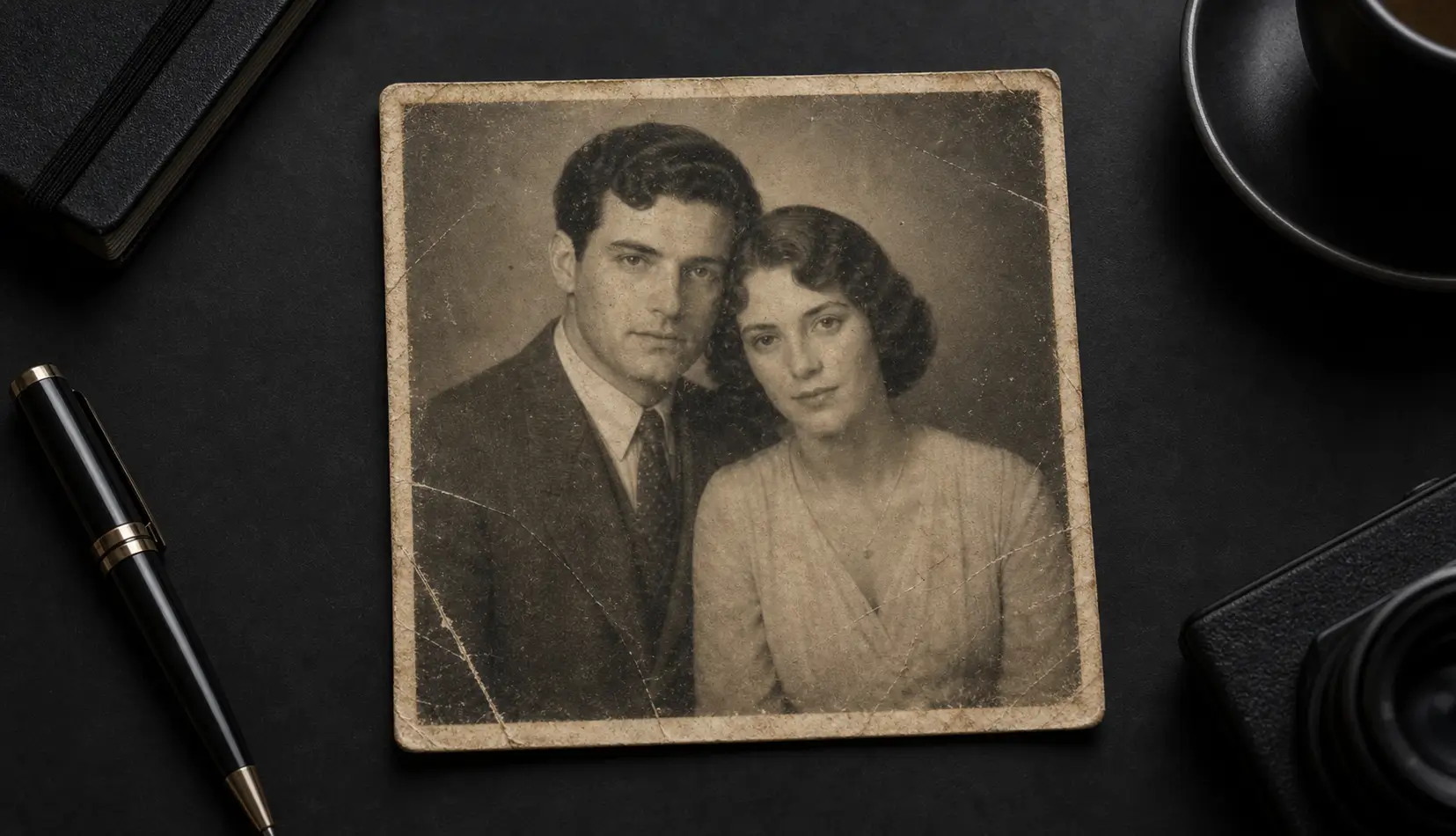
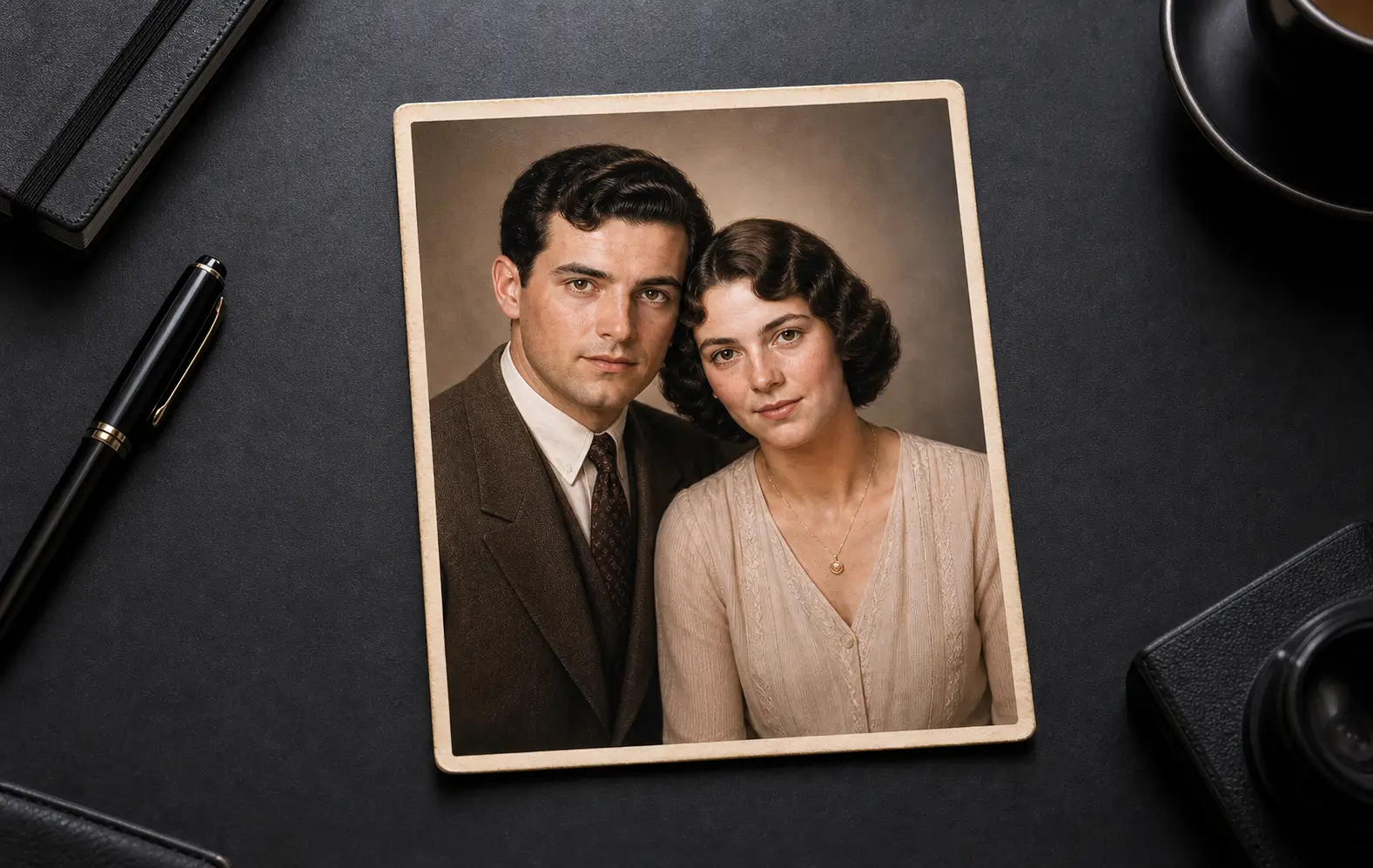
Step 1: Capture the print properly
Restoration can’t fix what the camera didn’t capture, so take a minute here.
- Remove the photo from its frame or album sleeve if you can do it safely — plastic causes glare.
- Use soft, even light. Near a window on a cloudy day is ideal. Turn off the flash.
- Hold the phone parallel to the photo so the edges are straight.
- Fill the frame with the print, and tap to focus on a face.
Step 2: Restore it with AI
- Open Qutu and choose the old photo restoration tool.
- Select the photo you just took.
- Let Qutu repair scratches, creases, stains and fading, and sharpen faces.
- Press and hold to compare with the original, then save.
Step 3: Keep both versions safe
- Save the original capture and the restored copy — future tools may do even better with the original.
- Back them up to iCloud Photos or another cloud service.
- Name or caption the photo with who’s in it and when it was taken while family members still remember.
What restoration can and can’t do
AI restoration is very good at scratches, dust, creases, fading and soft focus. It can’t recover parts of a photo that are completely torn away, and it may guess at details in badly damaged faces. Treat the result as a careful restoration, not a historical record — and keep the original.