AI Photo Enhancer

Unblur any photo and enhance it to HD

Turn soft, pixelated or low-resolution photos into clean, detailed images. Qutu sharpens faces and textures, removes noise and upscales the result.

Free to download · Photos auto-deleted in 48h · Updated October 19, 2026

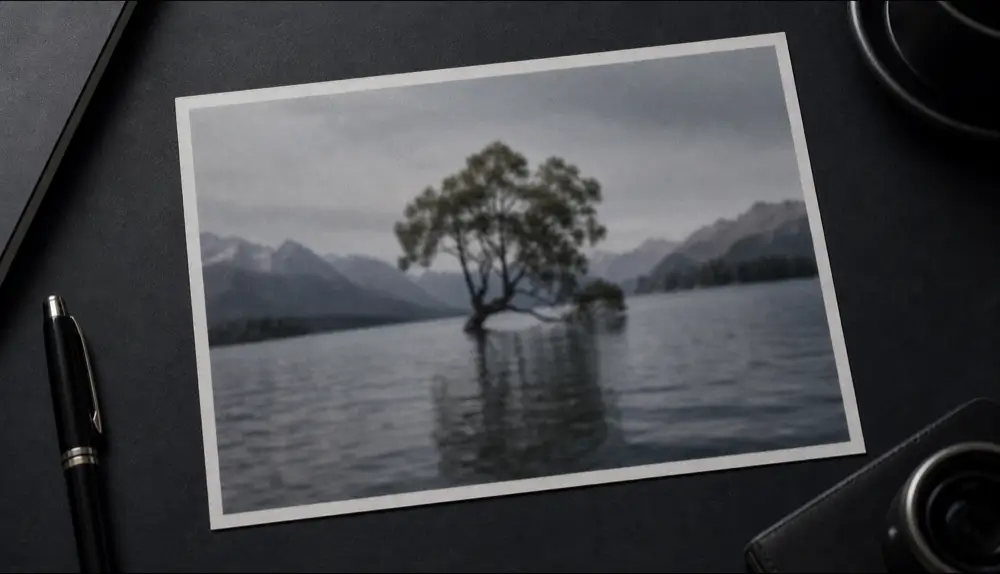
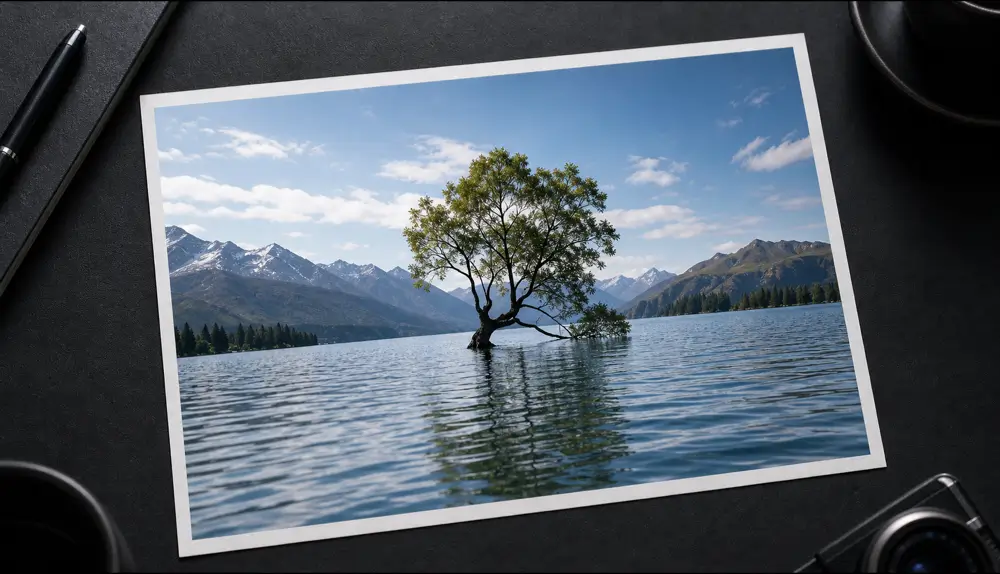
Qutu enhancing a blurry photo to HD

How it works

  1. Choose a photo

    Pick any image that looks soft, noisy or too small — a crop, a download, an old phone photo.

  2. Enhance with one tap

    Qutu restores detail, cleans up noise and compression blocks, and upscales the image.

  3. Compare and save

    Check the before and after side by side, then save the HD version.

Before Before: A soft, low-resolution photo enhanced with sharper detail and less noise.
After After: A soft, low-resolution photo enhanced with sharper detail and less noise.
A soft, low-resolution photo enhanced with sharper detail and less noise.

What “unblur” really means

A blurry photo has lost information. Classic tools try to squeeze out the little detail that is left by boosting edges, which also makes noise and compression artifacts stand out. AI enhancement works differently: it predicts the detail that most likely belonged there, based on what similar images look like, and rebuilds it.

That is why AI can turn a 600-pixel crop into something you can print, and why it is also worth checking the result — the AI fills in plausible detail, not a recording of the original scene.

When to use it

  • Cropped photos where the subject ended up small.
  • Images saved from social media or chats that were heavily compressed.
  • Older phone photos taken in low light.
  • Product photos that need to look sharp on a listing.

Tips

  • Use the biggest, least-compressed version you have.
  • If the image has text you need to read, run the text sharpening tool instead — it’s tuned for letters.

Frequently asked questions

Can it fix motion blur?

Mild motion blur and soft focus usually improve a lot. Heavy blur where the subject is smeared across the frame can only be partly recovered.

Will faces look fake?

Qutu aims to keep the person recognizable. Always check the result at full size, and keep the original if you prefer it.

What about very old prints?

For scratched, faded or torn prints, use the old photo restoration tool — it also repairs damage and color.

Change the words. Keep the photo.

Qutu matches the original font, color and background, so your edit looks like it was always there.