AI Text Remover

Remove text from any image

Tap the words you want gone and Qutu erases them, then repaints the paper, wall, sky or fabric underneath so the photo looks like the text was never there.

Free to download · Photos auto-deleted in 48h · Updated October 19, 2026

Qutu replacing text in a photo while matching the original font and color

How it works

  1. Upload the photo

    Choose a screenshot, scan, poster or product shot. Qutu finds every block of text automatically and outlines it.

  2. Select the text to erase

    Tap one block or several. Clear the words instead of typing a replacement and Qutu treats the area as a removal.

  3. Save the clean image

    The AI rebuilds the texture, lighting and pattern behind the text. Compare before and after, then save in high resolution.

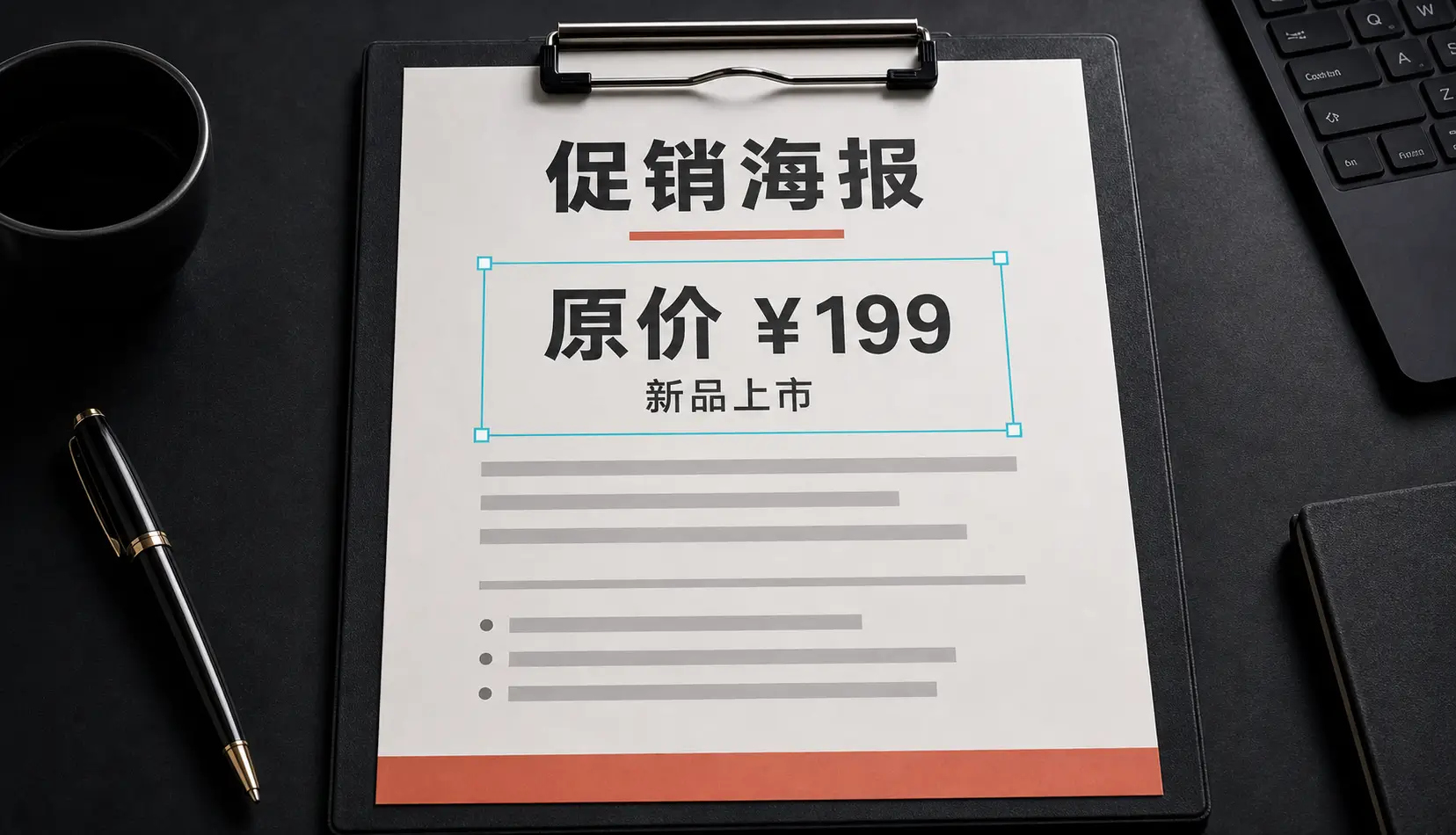
Before Before: The price block on this poster was cleared and rewritten in place — the same AI can also leave the area blank.
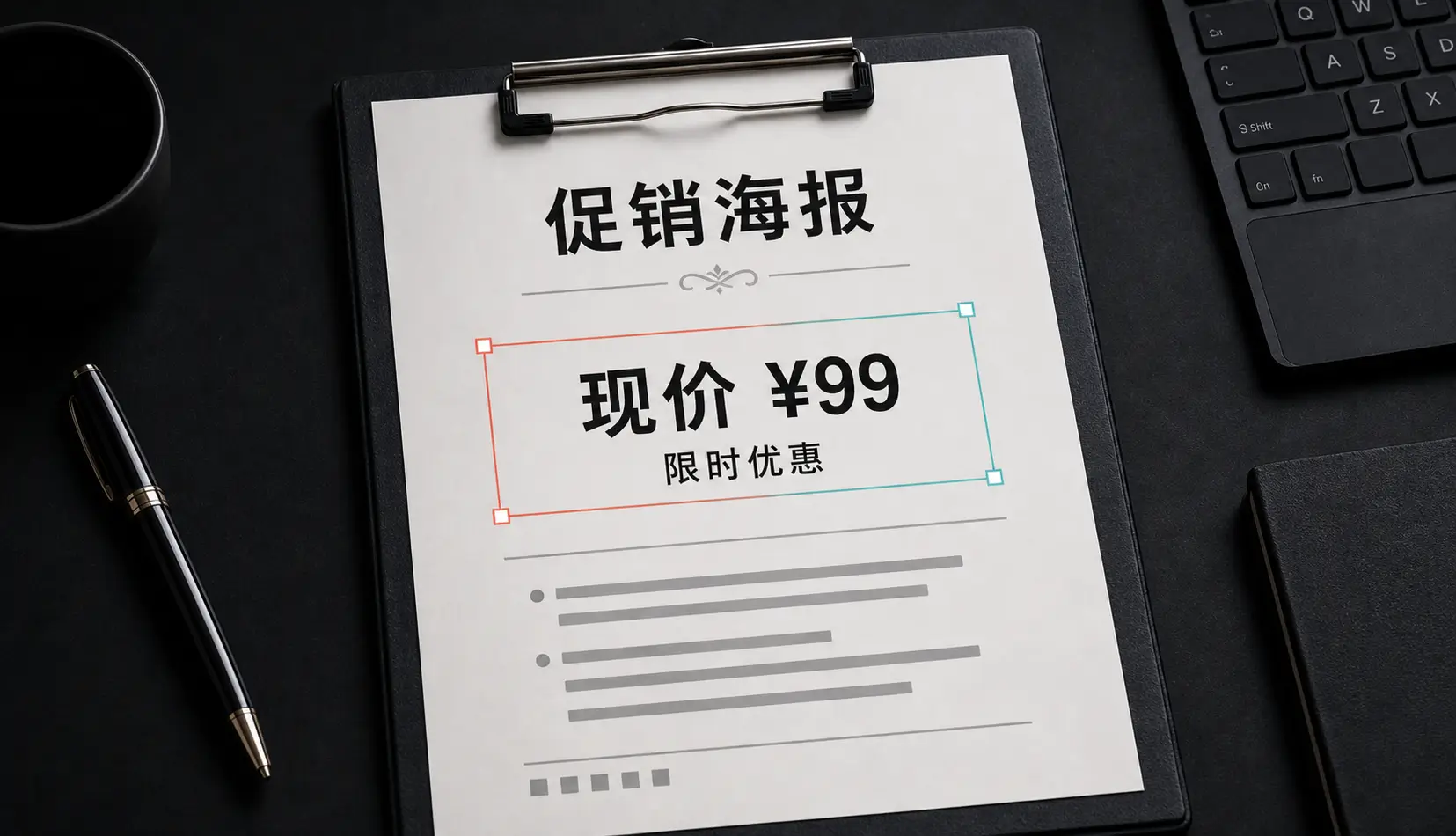
After After: The price block on this poster was cleared and rewritten in place — the same AI can also leave the area blank.
The price block on this poster was cleared and rewritten in place — the same AI can also leave the area blank.

When removing text beats cropping

Cropping throws away the part of the picture you wanted to keep. Most of the time the text is sitting right on top of something useful: a product shot for a listing, a clean background for a slide, a photo of a street with a temporary sign in the way. Removing the text keeps the composition and only changes the part you care about.

Common jobs people use Qutu’s text remover for:

  • Old dates and stamps printed in the corner of scanned photos.
  • Captions and stickers on images you made yourself and want to reuse.
  • Labels on mockups before you hand a design to a client.
  • Prices and promos on your own product photos when an offer ends.
  • Notes and handwriting on a printed page you want to share clean.

Removing vs. replacing

Removal and replacement are the same tool in Qutu. Select a block and clear it to erase the words, or type something new and the AI writes it in the original font, size and color. That means you can remove a line and add a new one in a single pass instead of jumping between apps.

Tips for the cleanest result

  1. Use the original file, not a compressed copy from a chat app — more detail gives the AI more to rebuild from.
  2. Select the whole block, including drop shadows or outlines, so no edge is left behind.
  3. Large text on a busy background? Run it once, then run a second pass on any leftover spot.

Use it responsibly

Edit images you own or have permission to change. Don’t use Qutu to alter identity documents, receipts, contracts or anything meant to prove a fact to someone else.

Frequently asked questions

Will the area where the text was look blurry?

Qutu does not blur or clone-stamp the spot. It regenerates what should be behind the text — paper grain, gradients, patterns — so the result blends with the rest of the image.

Can I remove only some of the text?

Yes. Every detected block is selectable on its own, so you can erase a single date or label and leave the rest untouched.

Does it work on screenshots and scanned documents?

Yes. Flat backgrounds like screenshots and documents are the easiest case. Busy backgrounds such as fabric or foliage also work, though very large text on detailed scenes may take a second try.

What happens to my photos?

Photos are processed to create your result and are automatically deleted from our servers within 48 hours.

Change the words. Keep the photo.

Qutu matches the original font, color and background, so your edit looks like it was always there.